


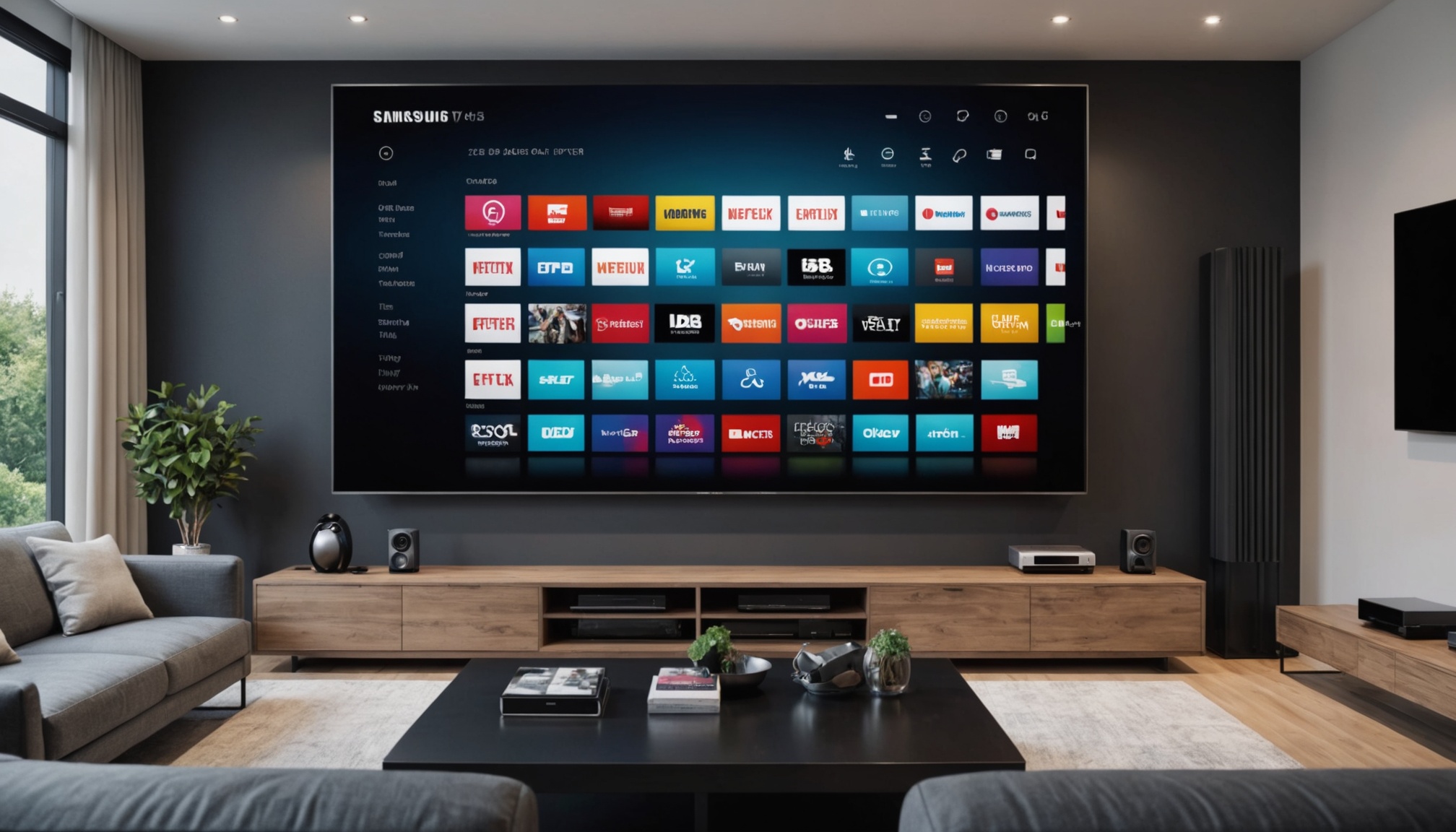
IPTV Setup on Samsung Smart TV 2026 Guide
Introduction to IPTV on Samsung Smart TVs
What is IPTV?
Internet Protocol Television, or IPTV, is a service that delivers television programming and other video content using the TCP/IP protocol suite over a packet-switched network such as a LAN or the internet, instead of being delivered through traditional terrestrial, satellite signal, and cable television formats. This allows you to stream your favorite channels and shows directly through your internet connection.
Benefits of IPTV on Samsung TVs
Setting up IPTV on your Samsung Smart TV in 2026 comes with a host of benefits. First off, there's the variety of channels. You can access global content beyond the usual cable offerings. Plus, IPTV often offers better streaming quality, depending on your internet connection. It's like having a plethora of channels at your fingertips without the clutter of cables.
Step-by-Step IPTV Setup
Installing IPTV Apps
To get started with your IPTV setup on a Samsung Smart TV 2026, you need to install an IPTV application. Head over to the Samsung App Store on your TV. Use the search function to find a reputable IPTV app — there are many, so choose one based on reviews and features that meet your needs. Click "Install" to download the app to your TV.
Configuring IPTV Settings
Once you've installed the app, open it and navigate to the settings menu. You’ll typically need to enter a subscription code or URL provided by your IPTV service. This is where your content will stream from. Remember to check if your chosen app supports the playlist format offered by your provider (like M3U or XML).
Connecting to a Network
For IPTV to work smoothly, your Samsung Smart TV needs a stable internet connection. You can connect via Wi-Fi or an Ethernet cable. I recommend using an Ethernet connection if possible, as it tends to be more reliable. Go to your TV’s network settings, select your preferred connection type, and follow the prompts to connect.
Troubleshooting Common IPTV Issues
Connection Problems
One common issue is losing connection. If you’re experiencing this, first check your internet connection. Restart your router and ensure your TV is connected to the correct network. If you're using Wi-Fi, try moving your router closer to the TV.
Playback Errors
Playback errors can be frustrating. Often, they’re caused by a poor internet connection or incorrect IPTV settings. Double-check your IPTV configuration and ensure all URLs or codes are entered correctly. If the issue persists, try reinstalling the app.
App Crashes
If your IPTV app keeps crashing, it might be due to outdated software. Make sure both your Samsung Smart TV and the app itself are updated to the latest versions. You can check for updates in the settings menu of your TV and the Samsung App Store.
Optimizing IPTV Performance
Recommended Settings
To optimize IPTV performance, adjust settings like buffer size and video quality. Many IPTV apps allow you to tweak these in the settings menu. A smaller buffer size can reduce delay, but it might increase the risk of buffering if your connection is unstable.
Enhancing Picture Quality
For the best picture quality, ensure your TV's display settings are calibrated correctly. Adjust brightness, contrast, and sharpness to your liking. Also, some IPTV apps offer HD or 4K streams, so check if your subscription includes high-quality streams.
Improving Streaming Speed
Your internet speed is crucial for smooth IPTV streaming. Ideally, you should have at least a 15 Mbps connection for HD content and 25 Mbps or more for 4K streaming. Use a service like Fast.com to test your internet speed and consider upgrading if necessary.
Can I use IPTV on all Samsung Smart TVs?
Most Samsung Smart TVs support IPTV apps, but older models may lack this capability. Generally, TVs from 2016 onwards have better support for modern streaming apps.
How do I update IPTV apps on my Samsung TV?
To update your IPTV apps, go to the Samsung App Store on your TV. Navigate to "My Apps" and check for updates. If available, select "Update" to install the latest version.
What internet speed is required for IPTV?
For a smooth IPTV experience, a minimum speed of 15 Mbps is recommended for HD streaming, while 25 Mbps or more is ideal for 4K content.
Why is my IPTV buffering?
Buffering can be caused by network congestion, insufficient bandwidth, or server issues from your IPTV provider. Check your internet speed and consider using a wired connection.
Is IPTV legal to use?
IPTV itself is legal, but it depends on the source of the content. Always ensure that your IPTV service is legitimate and complies with copyright laws.