


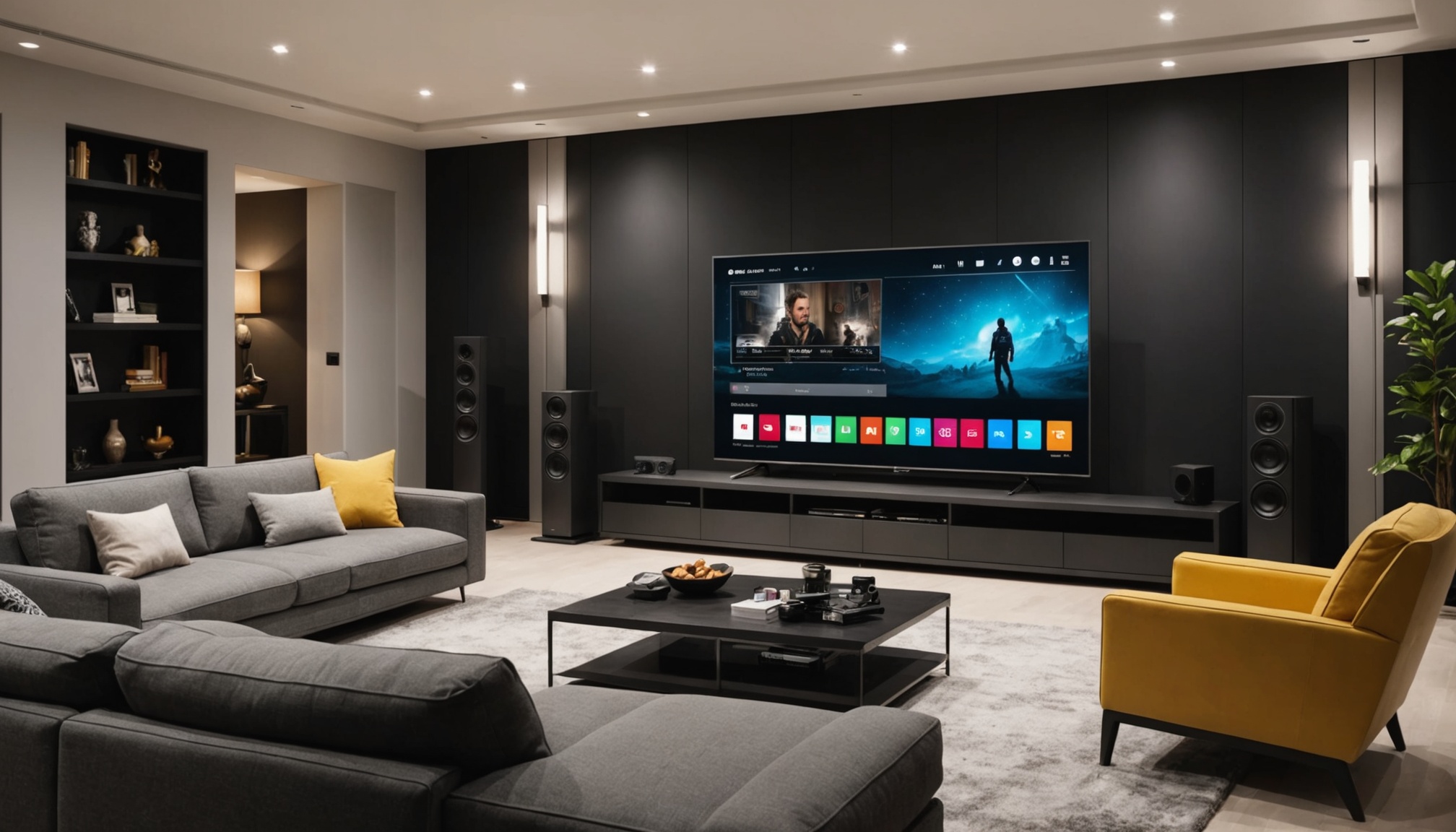
IPTV Setup Guide for LG webOS 2026
If you're looking to enjoy seamless streaming on your LG webOS TV, setting up IPTV is a great option. In this guide, I'll walk you through the IPTV setup for LG webOS 2026, ensuring you can dive into a world of entertainment without a hitch.
Understanding IPTV Technology
What is IPTV?
IPTV, or Internet Protocol Television, is a method of delivering television content over the internet. Unlike traditional cable or satellite TV, IPTV offers a more flexible and interactive viewing experience. You get to watch what you want, when you want, all through an internet connection.
Benefits of IPTV
The main advantage of IPTV is its on-demand nature. You're not tied to broadcast schedules, and you can pause, rewind, or fast-forward your content. IPTV often has a wider range of channels and shows, catering to diverse preferences. Plus, it's usually more cost-effective compared to traditional cable services.
IPTV Protocols and Codecs
Technically speaking, IPTV relies on specific protocols and codecs to deliver content. Common protocols include HTTP Live Streaming (HLS), Real-Time Streaming Protocol (RTSP), and Internet Group Management Protocol (IGMP) for live broadcasts. As for codecs, H.264 and H.265 are popular choices for compressing video files without losing quality.
Preparing Your LG webOS TV for IPTV
Checking Device Specifications
Before diving into the IPTV setup for LG webOS 2026, ensure your TV meets the necessary specifications. You'll need a model that supports webOS 2026 and has a minimum of 2GB RAM for smooth operation. Check your TV specs in the settings menu.
Updating webOS Software
Keeping your webOS up to date is crucial. Go to Settings > All Settings > General > About This TV. Here, you'll find the option to check for updates. If an update is available, download and install it to ensure compatibility with IPTV apps.
Network Requirements
A stable network is key for IPTV. Make sure your internet speed is at least 10 Mbps for standard definition and 25 Mbps for high definition streams. Wired connections are preferable, but if you're using Wi-Fi, ensure your router is close to the TV to minimize interference.
Step-by-Step IPTV Setup on LG webOS
Installing IPTV App
First, you'll need to install an IPTV app compatible with LG webOS. Head to the LG Content Store on your TV, search for "IPTV," and download an app like Smart IPTV or IPTV Smarters. Ensure it's compatible with your webOS version.
Configuring IPTV Settings
Once the app is installed, open it and enter your IPTV service credentials. You'll typically need a URL or M3U playlist file provided by your IPTV service. Enter these details in the app's settings to load your channel list.
Testing IPTV Connection
After configuration, test your IPTV connection by selecting a channel. If everything is set up correctly, you should be able to stream without interruptions. If issues arise, double-check your credentials and network settings.
Troubleshooting Common Issues
Connection Problems
If you're having trouble connecting, first check your internet connection. Restart your router and try reconnecting your TV. Ensure your IPTV credentials are correct and that your subscription is active.
App Crashes
App crashes can be frustrating. Make sure your app is up to date by checking the LG Content Store for updates. If the problem persists, try reinstalling the app or contacting the app's support team for assistance.
Streaming Quality Issues
For streaming quality problems, adjust your app's settings. Lowering the resolution can help if your internet speed fluctuates. If you're on Wi-Fi, consider switching to a wired connection for more reliable performance.
Can I use any IPTV service on LG webOS?
Not all IPTV services are compatible with LG webOS. When choosing a service, ensure it supports the protocols and apps available on LG webOS. Check the service's support page for compatibility information.
What are the best network settings for IPTV?
For optimal IPTV streaming, use a wired connection if possible. Set your router to use a 5GHz band to reduce interference, and ensure QoS (Quality of Service) settings prioritize your TV's connection.
How do I update my LG webOS to the latest version?
To update your LG webOS, go to Settings > All Settings > General > About This TV, and select 'Check for Updates.' If an update is available, follow the on-screen instructions to install it.
Why is my IPTV buffering on LG webOS?
Buffering can be caused by slow internet speeds or network congestion. Ensure your internet meets the minimum speed requirements, and try closing other devices or applications using bandwidth.
How to improve IPTV streaming quality?
To enhance streaming quality, ensure your IPTV app is updated and configured correctly. Lower the resolution if necessary and use an Ethernet cable for a more stable connection.